Cloud Accounts are the entry point of QuickInfra. Every piece of infrastructure you provision, every VM you launch, and every pipeline you run is tied to a cloud account. Without one, nothing else works — this is where you begin.
What is a Cloud Account?
A Cloud Account in QuickInfra is a secure connection between the platform and your cloud provider — currently AWS, with Azure and GCP support on the roadmap. When you add a cloud account, you provide QuickInfra with the credentials it needs to provision and manage infrastructure on your behalf.
All resources created within QuickInfra — virtual machines, networks, volumes, deployments — are provisioned under the cloud account you select at the time of creation. This gives you full control over which account bears the cost and where your infrastructure lives.
Note:You can add multiple cloud accounts — for example, separate accounts for development, staging, and production environments — and switch between them per resource.
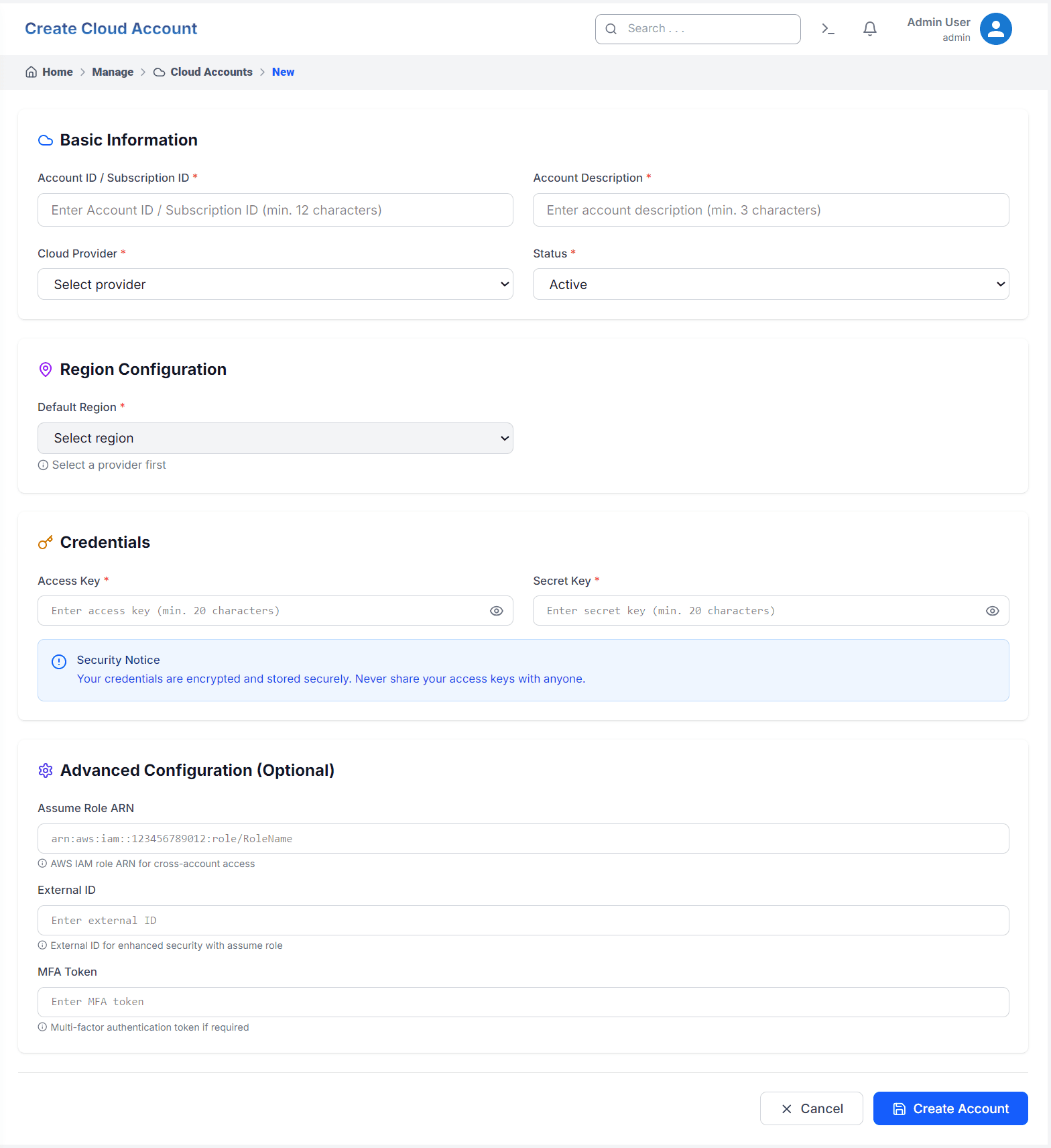
The Create Cloud Account form — fill in your provider credentials, region, and optional advanced settings.
How to Add a Cloud Account
1
Navigate to Manage → Cloud Accounts
From the left sidebar, go to Manage and select Cloud Accounts. Click the New button in the top-right corner to open the creation form.
2
Fill in Basic Information
Enter your Account ID / Subscription ID — this is the unique identifier of your cloud account (minimum 12 characters). Add a meaningful Account Description so you can identify it easily later. Select your Cloud Provider from the dropdown and set the Status to Active.
3
Set the Default Region
Select a Default Region for this account. This region will be pre-selected when provisioning resources under this account. The region list populates automatically once you choose a cloud provider.
4
Enter Your Credentials
Provide the Access Key and Secret Key for your cloud provider. These are your programmatic access credentials — for AWS, you generate these from the IAM console. Both fields require a minimum of 20 characters.
5
Advanced Configuration (Optional)
If your organisation uses cross-account access, enter the Assume Role ARN and an External ID for enhanced security. If MFA is required for programmatic access, provide the MFA Token as well. These fields are entirely optional for standard setups.
6
Create the Account
Click Create Account. QuickInfra will validate your credentials against the cloud provider and save the account if successful. You will be redirected to the Cloud Accounts list where your new account appears immediately.
Warning:Never share your Access Key and Secret Key with anyone. QuickInfra encrypts and stores your credentials securely — they are never displayed in plain text after saving.
Switching Infrastructure Between Accounts
One of the most powerful features of Cloud Accounts is the ability to move infrastructure between accounts. If you need to migrate a workload from a development account to production, QuickInfra allows you to re-assign resources to a different cloud account without reprovisioning from scratch. Simply select the target account during the transfer operation and QuickInfra handles the rest.
Tip:Keep your account descriptions clear and environment-specific — for example, "AWS Production — ap-south-1" or "AWS Dev — us-east-1". This makes it much easier to select the right account when creating resources.
Key Things to Know
A cloud account must be Active for resources to be provisioned under it.
You can add as many cloud accounts as your subscription allows — one per environment is recommended.
Credentials are encrypted at rest and never exposed after initial entry.
The default region set here acts as a fallback — you can always override it per resource.
Deleting a cloud account does not delete the infrastructure provisioned under it — it only removes the connection from QuickInfra.