
Deployment Projects
Deployment Projects let you deploy anything — applications, scripts, configuration files, database imports, and more — to any number of servers simultaneously. Connect directly or through a bastion host, target multiple servers in one run, and watch the Ansible execution stream live.
What are Deployment Projects?
A Deployment Project is a configured set of activities that Ansible executes on your target servers. Each activity defines what gets deployed — a Java application, a shell script, a configuration file, a database import, or any of the many supported activity types — and Ansible handles the actual connection and execution against your servers.
Like Infrastructure Projects, Deployment Projects can be created from scratch, copied from an existing project, or built from a ready-made template. Once configured, a project can be executed against any server — switch the target hosts and run the same deployment across dev, staging, and production without duplicating your configuration.
Three Ways to Create a Project
- From Scratch — Create a blank project and add activities one by one. Full control over every setting and activity sequence.
- Copy from an Existing Project — Clone any existing deployment project as a starting point. All activities and configurations are duplicated instantly — ideal for spinning up identical deployments for a new environment.
- From a Ready-Made Template — QuickInfra provides pre-configured deployment templates for common patterns. Select one and a fully configured project is created for you, ready to execute with minimal adjustments.
Connecting to Your Servers
Deployment Projects support two connection modes for reaching your target servers:
- Direct Connection — Connect directly to servers using their private IP. Used when QuickInfra and your servers are within the same network or VPC.
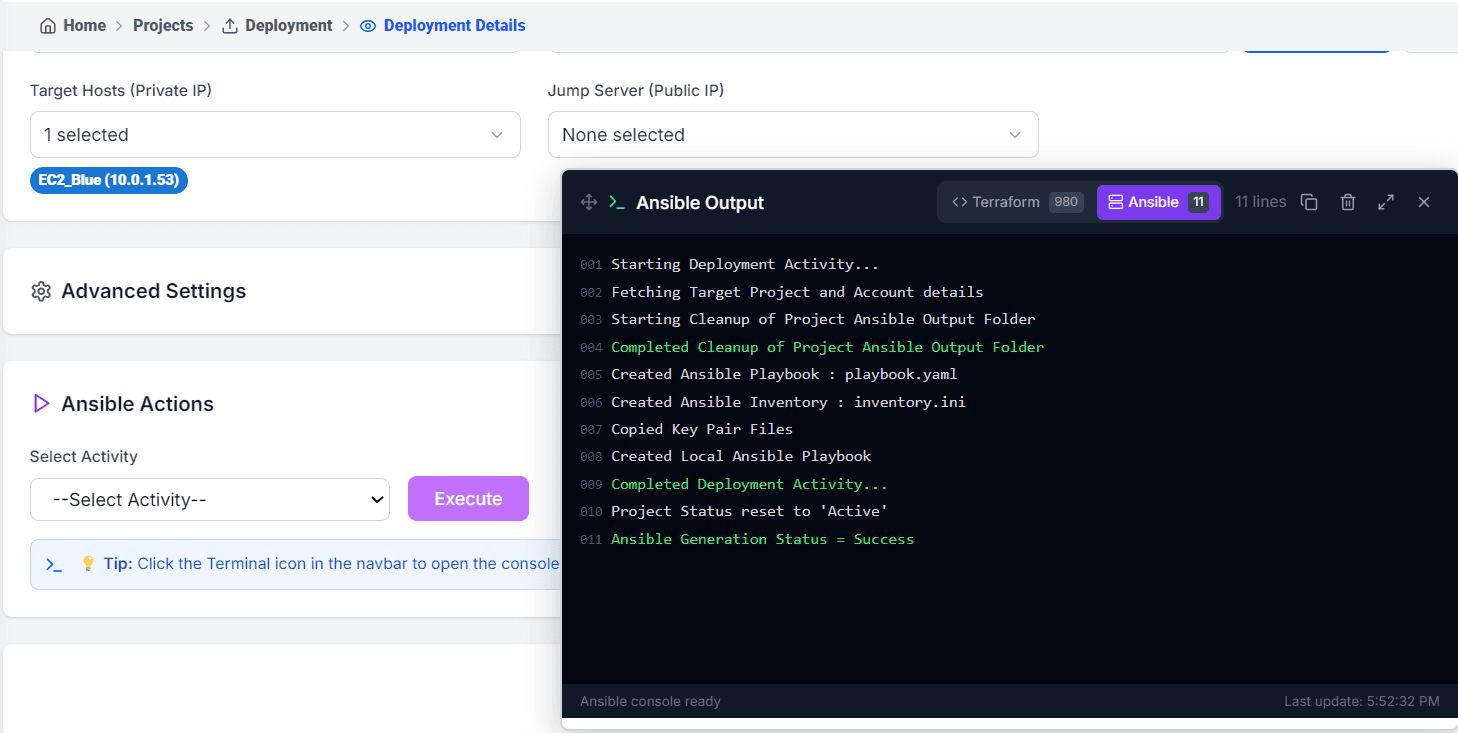
- Via Bastion Host — Connect through a jump server (bastion) using its public IP before reaching private servers. Select the bastion under Jump Server (Public IP) and target your private instances as usual. This is the standard pattern for production environments where servers have no public IP.
You can target multiple servers in a single execution — select any number of Target Hosts and Ansible will run all activities across every selected server in parallel.
Supported Activity Types
Each activity in a Deployment Project maps to a specific deployment operation. QuickInfra supports a comprehensive range of activity types across Linux, Windows, and database targets:
Linux
- Configuration File Copy — Copy config files to target servers.
- Archive Copy — Deploy .zip, .tar, .tar.gz, or .tar.bz2 archives.
- Custom Application — Deploy Java, .Net, or Python applications.
- Linux Shell Script — Execute any shell script on target servers.
- Linux Custom Install Script — Run custom installation scripts from your Custom Scripts library.
- Ansible Playbook Script — Execute a full Ansible playbook for complex orchestration.
Windows
- Configuration File Copy — Copy config files to Windows servers.
- Archive Copy — Deploy archives to Windows targets.
- Custom Application — Deploy Java, .Net, or Python applications on Windows.
- Windows PowerShell Script — Execute PowerShell scripts on Windows servers.
- Windows Custom Install Script — Run custom install scripts from the library.
- Windows Chocolatey Installer — Install packages via Chocolatey package manager.
- Windows Installer — Run .msi or .exe installers on target Windows servers.
- Windows IIS Website — Deploy and configure IIS web applications.
Database — Import
- MySQL, Postgres, Oracle, MS-SQL — Import data into self-hosted databases.
- AWS RDS MySQL, Postgres, Oracle, MS-SQL — Import data directly into AWS RDS instances.
Database — Export
- MySQL, Postgres, Oracle, MS-SQL — Export data from self-hosted databases.
- AWS RDS MySQL, Postgres, Oracle, MS-SQL — Export data from AWS RDS instances.
How to Execute a Deployment
Key Things to Know
- QuickInfra auto-generates the Ansible playbook and inventory file for every execution — you do not need to write or manage playbook files manually.
- Key pairs are picked up automatically from the Infrastructure Project you select when fetching target hosts — no manual key configuration required in the deployment project.
- Multiple activities in a project execute in the order they are configured — use this to sequence deployments correctly, such as stopping a service before deploying new binaries.
- Database import and export activities work with both self-hosted databases and AWS RDS instances — specify connection details in the activity configuration.
- The terminal panel retains the last execution output until a new execution starts — use it to review results after navigating away from the project.