
Custom Scripts
Custom Scripts give you a centralised library of shell scripts that can be executed directly on your servers through the Deployment section. Write them manually, or let QuickInfra's built-in AI generate them for you in seconds.
What are Custom Scripts?
Custom Scripts are reusable automation scripts stored inside QuickInfra and available for execution across your infrastructure. Think of them as your team's shared playbook — server configuration routines, software installation sequences, cleanup jobs, health checks, and anything else you would otherwise run manually over SSH.
QuickInfra supports a wide range of script types to cover every layer of your infrastructure automation stack — Linux Shell for server configuration, Ansible for configuration management and orchestration, CloudFormation for AWS infrastructure as code, PowerShell for Windows server automation, and custom Terraform scripts for provisioning cloud resources across any provider.
Once a script is saved, it becomes available in the Deployment section where it can be attached to a deployment project and executed on target servers automatically. This eliminates the need to maintain separate script repositories or manually copy files to servers.
Two Ways to Create a Script
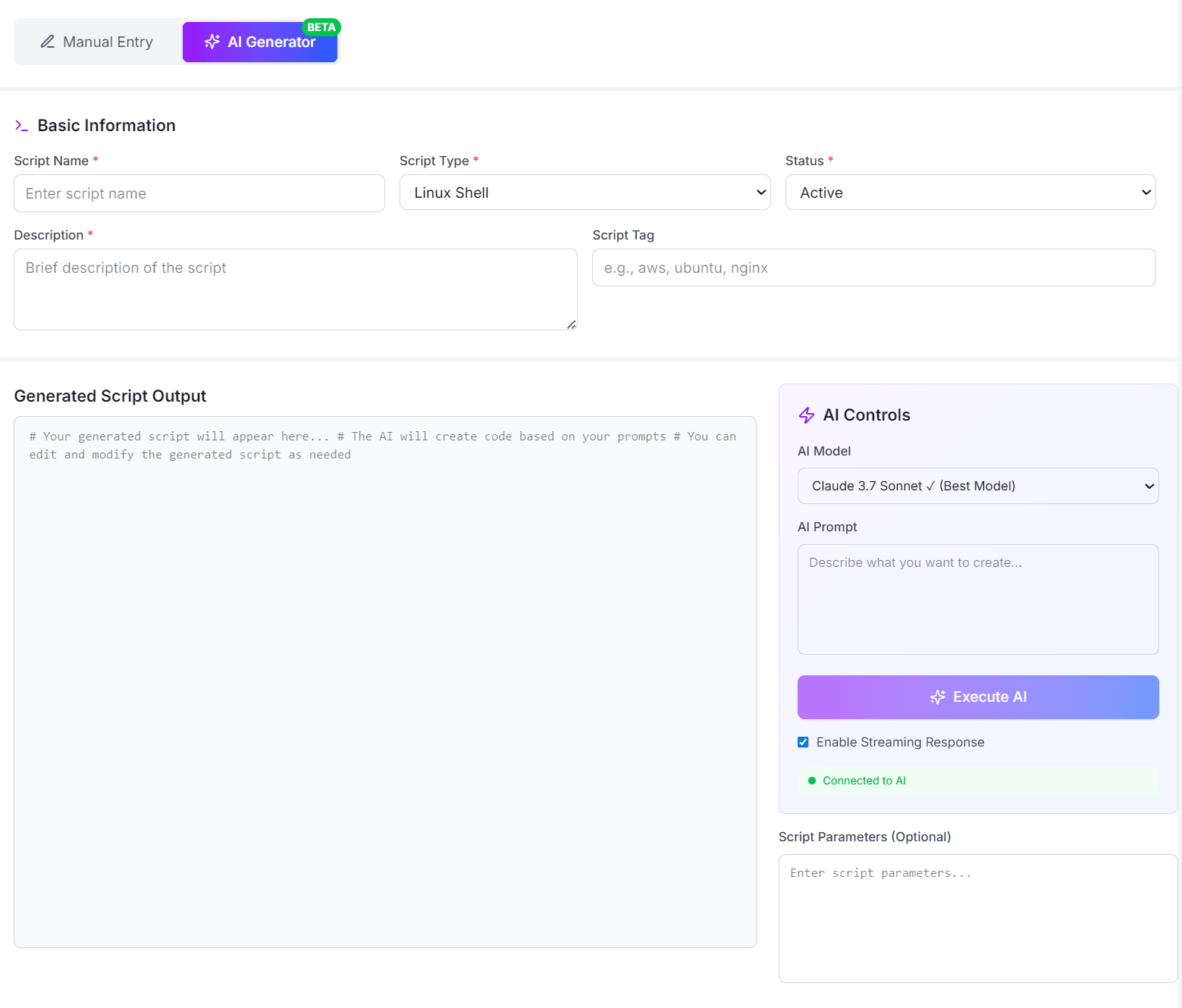
QuickInfra gives you two modes when creating or editing a script — Manual Entry and the AI Generator. Both produce the same output: a saved, executable script in your library.
Manual Entry
AI Generator
The AI Generator is a built-in assistant powered by Claude that writes shell scripts for you based on a plain-English description. It is particularly useful when you need a script quickly or are unsure of the exact syntax for a complex operation.
Managing Existing Scripts
From the Custom Scripts list you can view, edit, and configure any saved script. Use the search and tag filters to find scripts quickly across a large library. Inactive scripts remain in the list but are not available for selection in deployment projects.
Key Things to Know
- Scripts are executed on target servers via the Deployment Projects section — they cannot be run directly from this screen.
- Use Script Tags to categorise scripts by technology or purpose for faster discovery.
- The AI Generator runs on a pre-configured AI account provided by QuickInfra — no setup required. Support for bringing your own AI model is coming in a future update.
- Script Parameters allow you to pass dynamic values at execution time without editing the script itself.
- Deleting a script that is referenced by an active deployment project will cause that project to fail — deactivate instead of delete.