
VM Images
VM Images gives you a centralised view of all Amazon Machine Images (AMIs) stored across your cloud accounts. Browse, manage, and export the status of your custom images — the same AMIs you create from the VM Instances section — all from one place.
What are VM Images?
An Amazon Machine Image is a snapshot of a virtual machine at a specific point in time. It captures the operating system, installed software, configuration, and data on the root volume, allowing you to launch new instances that are identical to the original — instantly and repeatedly.
In QuickInfra, VM Images serves as your AMI catalogue. Every image you have created — whether directly from the VM Instances section or independently in your cloud account — is listed here with its architecture, root device type, creation date, and current availability state. You can use these images as the base for new infrastructure deployments across any project.
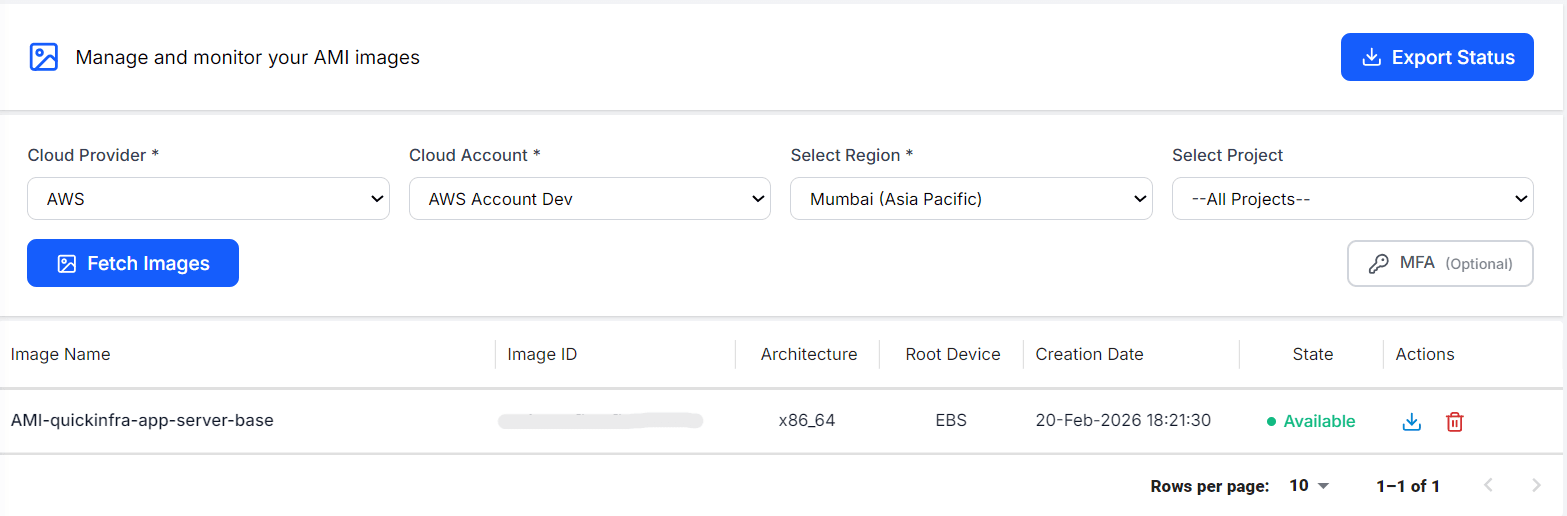
How to View Your Images
Actions Available per Image
- Export to S3 — Export the AMI as a portable machine image directly to your S3 bucket. This makes the image completely independent of the cloud provider — you can export from AWS and later import it into a different provider or region, eliminating vendor lock-in on your base images.
- Download — Pull image metadata and details directly for record-keeping or use in external workflows.
- Delete — Deregister the AMI from your cloud account permanently. This does not delete associated snapshots — those must be removed separately from your cloud console.
Key Things to Know
- Images are fetched live from your cloud account — the list always reflects the real-time state of your AMI catalogue.
- AMIs in a Pending state are still being created — wait for the state to change to Available before using them in a deployment.
- You can query images across different accounts and regions by updating the filters and fetching again.
- AMIs created via the Create AMI Backup action in VM Instances are automatically named and tagged by QuickInfra for easy identification.
- Architecture matters — an x86_64 AMI cannot be used to launch an ARM-based instance type and vice versa.