
VM Instances
VM Instances gives you a unified view of every virtual machine running across your cloud accounts — regardless of provider or region. Start, stop, delete, back up, and manage volumes, all from one screen without ever logging into your cloud console.
What is VM Instances?
VM Instances is your central dashboard for virtual machine lifecycle management inside QuickInfra. Rather than jumping between AWS, Azure, or GCP consoles to find and manage your servers, this section pulls all your instances into a single, filterable list. Select a cloud provider, pick an account and region, and every VM associated with that combination appears instantly.
From this list you can perform the most common VM operations directly — no separate tool or console access required. Each instance row shows you the VM name, ID, instance type, public IP, private IP, and current state at a glance, with action buttons immediately available on the right.
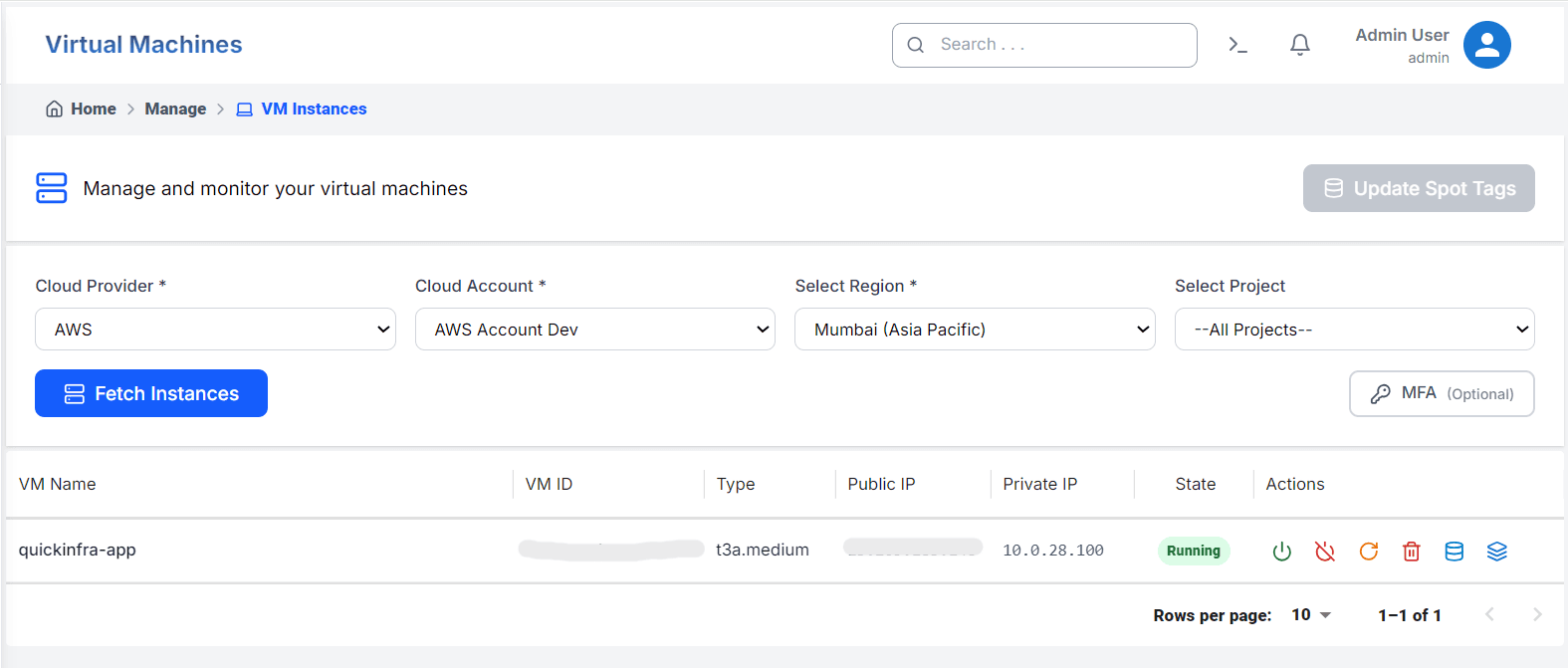
How to View Your Instances
Actions Available per Instance
Each virtual machine in the list has a set of action buttons available directly in the row. The following operations are supported:
- Start / Stop — Power a VM on or off without terminating it. Useful for cost management on non-production instances.
- Reboot — Restart the instance while keeping all data and configuration intact.
- Delete — Permanently terminate the instance. This action is irreversible — QuickInfra will ask for confirmation before proceeding.
- Create AMI Backup — Generate an Amazon Machine Image snapshot of the instance with a single click. The AMI is saved to your cloud account and appears in VM Images.
- View Associated Volumes — See all EBS volumes attached to the instance, their size, type, and state.
- Volume Updates — Modify volume configuration — such as size or type — directly from this screen without navigating to Disk Volumes separately.
Key Things to Know
- Instance data is fetched live from your cloud provider — the list always reflects the real-time state of your infrastructure.
- You can query instances across different accounts and regions by changing the filters and fetching again.
- AMI backups created here appear directly in your cloud account under EC2 → AMIs and are also accessible via the VM Images section in QuickInfra.
- Stopped instances still incur storage costs for their attached volumes — use Delete only when you are certain the instance is no longer needed.