QuickInfraQuickInfraDocs
Open Console
manage

VM Import

VM Import lets you bring virtual machine images stored in an S3 bucket directly into your cloud account as importable AMIs. Whether the image was exported by QuickInfra or uploaded manually, this section handles the full import workflow — browse, select, import, and track status.

What is VM Import?

VM Import is the counterpart to VM Export. When you export a virtual machine image to S3 — either through QuickInfra's export feature or manually from any source — VM Import gives you a streamlined way to bring that image back into your cloud account as a usable AMI.

This is the mechanism that enables true cloud portability. You can export a VM from one provider or account, store it in S3 as a neutral format, and then import it into any AWS account in any region — effectively moving workloads across environments without the need to reprovision or reconfigure from scratch.
Note:VM Import works with images exported by QuickInfra as well as any VM image you have manually uploaded to S3 in a supported format — VMDK, VHD, VHDX, or OVA.
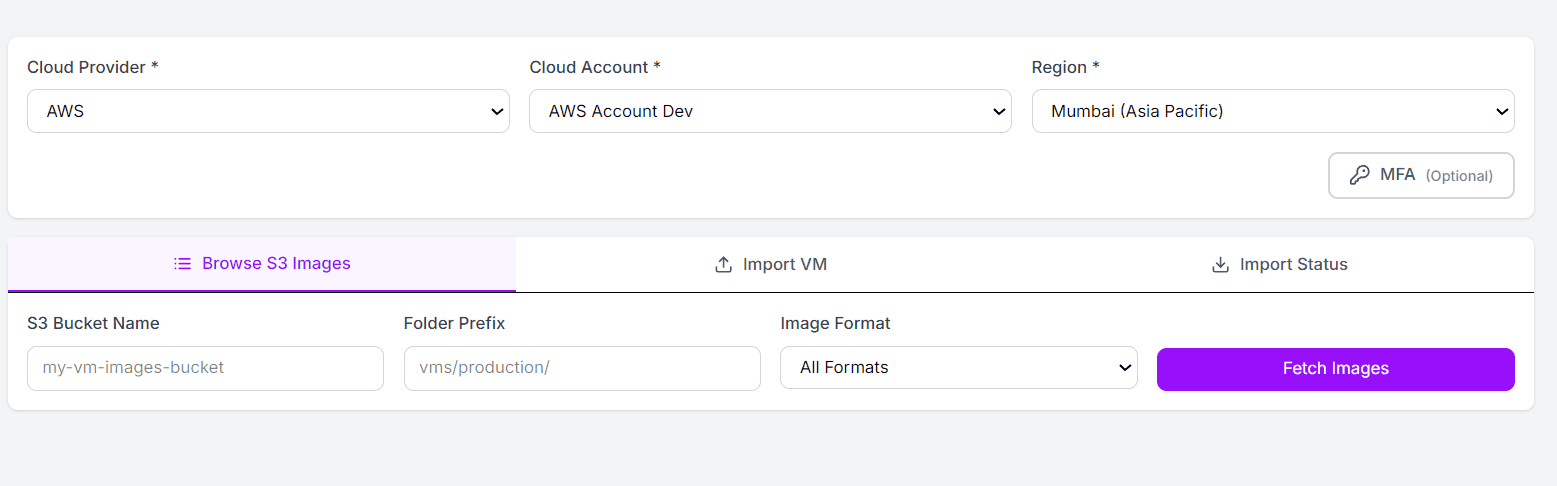
VM Import screen in QuickInfra showing S3 image browser
The VM Import screen — browse your S3 bucket for VM images, select one, and import it directly into your cloud account.

How to Import a VM

1
Navigate to Manage → VM Import
From the left sidebar select Manage then VM Import. Select your Cloud Provider, Cloud Account, and Region — this is the target account and region where the imported AMI will be created.
2
Browse S3 Images
On the Browse S3 Images tab, enter your S3 Bucket Namewhere the VM image is stored. Optionally provide a Folder Prefix to narrow the search to a specific path within the bucket — for example vms/production/. Select an Image Format or leave it as All Formats, then click Fetch Images to list all available VM images in that location.
3
Select and Import
From the list of images returned, select the one you want to import and switch to the Import VM tab. Configure any import settings required — such as the target architecture and OS type — then submit the import job.
4
Track Import Status
Switch to the Import Status tab to monitor the progress of your import job. VM imports can take several minutes depending on the image size. Once complete, the imported image appears in your VM Images section as an available AMI ready for use in deployments.
Tip:If you exported the VM using QuickInfra's VM Export feature, the image is already in the correct format and folder structure in S3. Simply point VM Import at the same bucket and prefix to find it immediately.
Warning:Ensure the S3 bucket is in the same AWS region as the target cloud account, or that cross-region access is correctly configured. Import jobs will fail if the service cannot access the S3 object due to bucket policy or region restrictions.

Supported Image Formats

  • VMDK — VMware Virtual Machine Disk, commonly exported from VMware vSphere or Workstation.
  • VHD / VHDX — Microsoft Virtual Hard Disk formats, typically from Hyper-V or Azure.
  • OVA — Open Virtualization Archive, a portable format supported by most hypervisors.

Key Things to Know

  • The S3 bucket must be accessible from the target AWS account — ensure the bucket policy grants the necessary permissions to the AWS VM Import service role.
  • Import jobs are asynchronous — the Import Status tab is your source of truth for progress and any error messages.
  • Once imported, the AMI behaves identically to any other AMI in your account and can be used to launch instances via Infrastructure Projects.
  • Large images (100GB+) may take 30–60 minutes to import — plan accordingly when scheduling migrations.
Previous
Subnets
Next
VM Export