
Chat
Chat is a real-time broadcast channel for everyone in your QuickInfra organisation. Use it to share important updates, coordinate on active deployments, send alerts to the team, and keep everyone on the same page — all without leaving the platform.
What is Chat?
Chat is a team-wide broadcast channel built directly into QuickInfra. Every user in your organisation can see and send messages in real time. Think of it as a shared ops channel — a single place where your team communicates about infrastructure activities, deployment windows, access requests, and anything else the whole team needs to know.
Because it lives inside QuickInfra alongside your projects and resources, Chat is particularly useful for coordinating around live activities — announcing a production deployment, flagging a failed pipeline run, or asking colleagues to check a specific resource — all in the same context where the work is happening.
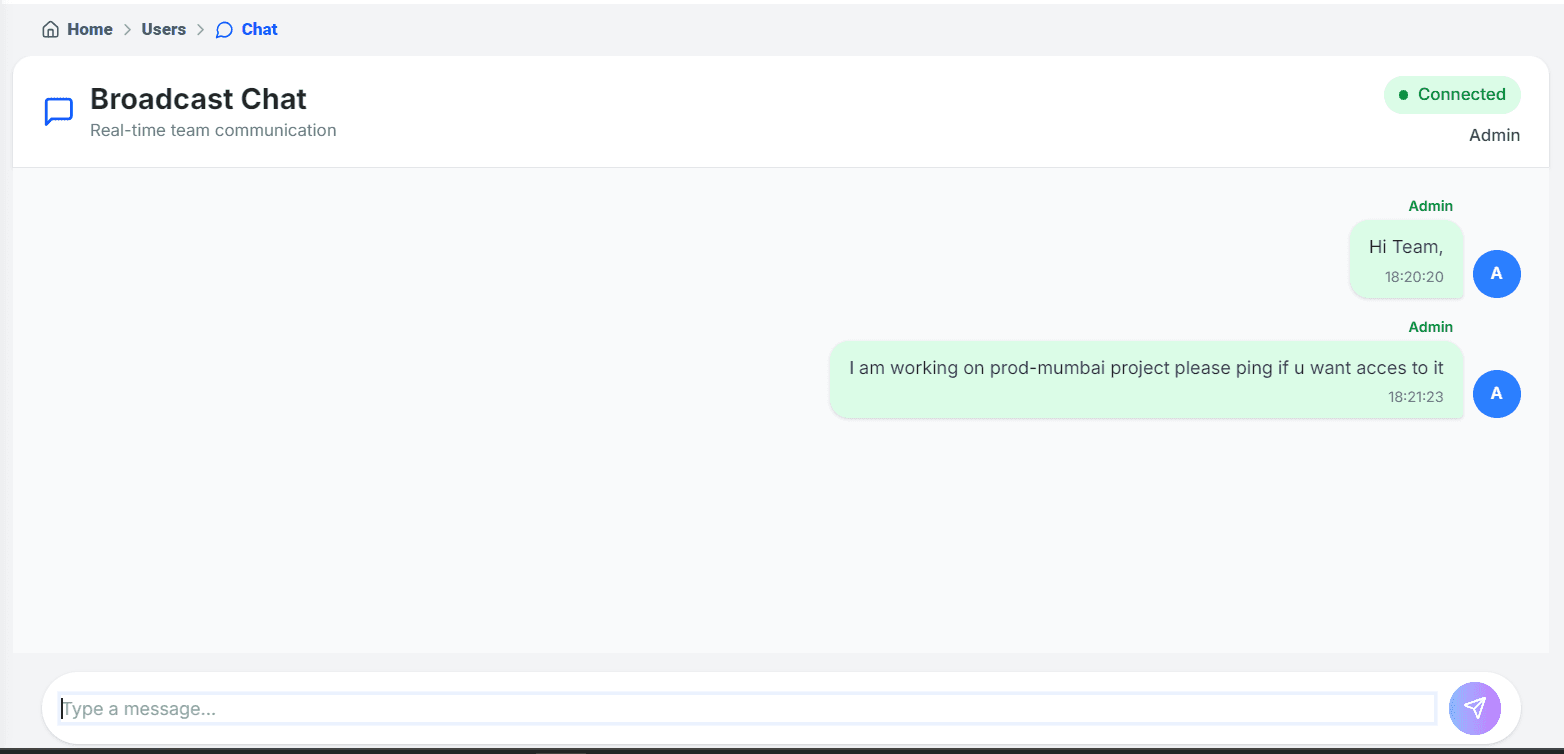
How to Use Chat
Navigate to Users → Chat. The broadcast channel loads with the full message history visible. Type your message in the input field at the bottom and press send — your message is delivered instantly to every connected user in your organisation. The Connected indicator confirms your real-time connection is active.
Common Use Cases
- Deployment announcements — Notify the team before triggering a production deployment so others are aware of potential impact.
- Access requests — Ask an admin to grant access to a specific project or cloud account directly in the channel.
- Incident alerts — Quickly alert the team when a pipeline fails, a server goes down, or an unexpected change is detected.
- General coordination — Coordinate work across team members who are operating in different parts of the platform simultaneously.
Key Things to Know
- Messages are visible to all users in your organisation — there are no private or direct message channels.
- The Connected status indicator confirms your real-time WebSocket connection is active. If it shows disconnected, refresh the page to reconnect.
- All users regardless of role can send and read messages in Chat.