VM Export lets you export any AMI from your cloud account to an S3 bucket in a portable image format. Use it to migrate workloads across cloud providers, create provider-independent backups, or archive machine images outside your cloud account.
What is VM Export?
VM Export converts an existing AMI in your cloud account into a standalone virtual machine image file and writes it to an S3 bucket of your choice. Once in S3, the image is independent of any cloud provider — it can be imported into a different AWS account, a different region, or an entirely different cloud platform using VM Import.
This is the first half of QuickInfra's cross-provider portability workflow. Export a machine image to S3, then use VM Import to bring it into any target account or provider. Together, these two features give you a complete migration and backup pipeline without relying on proprietary cloud migration tools.
Note:Images exported using VM Export are stored in your S3 bucket and can be imported back into any AWS account using the VM Import feature. The S3 bucket acts as a portable, provider-neutral storage layer between the two operations.
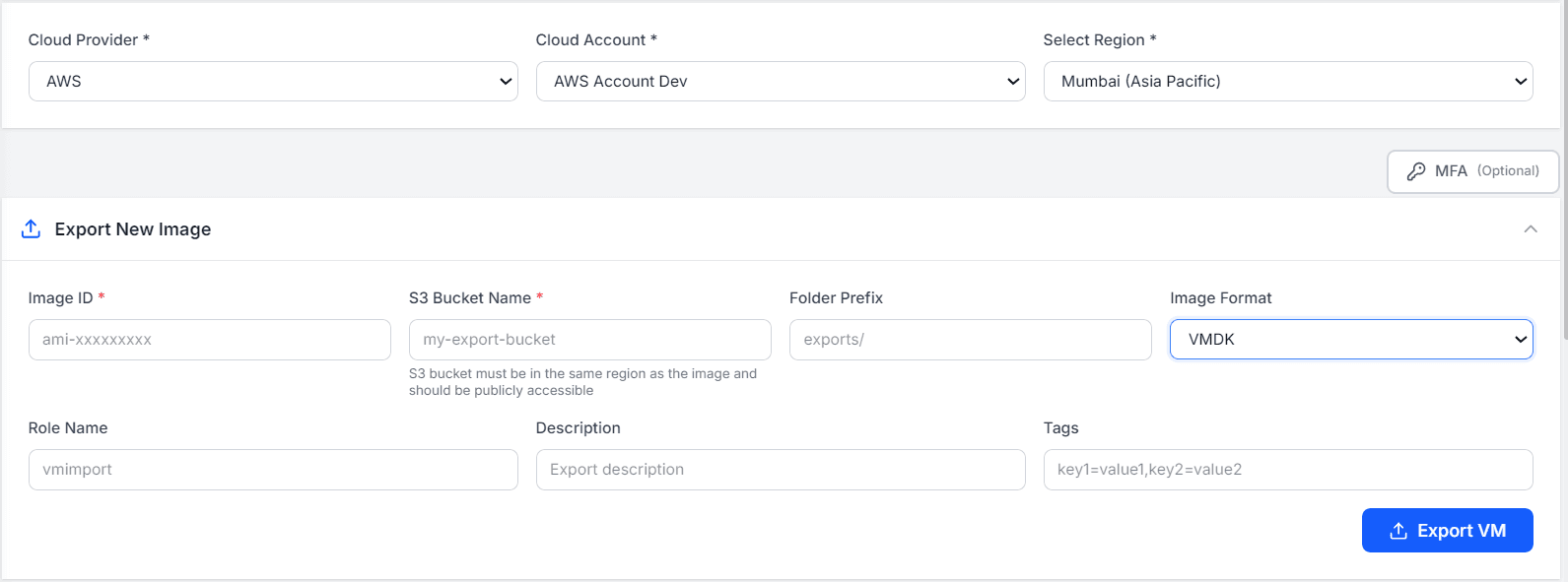
The VM Export form — provide the AMI ID, target S3 bucket, folder prefix, image format, and optional role and tags, then export.
How to Export a VM
1
Navigate to Manage → VM Export
From the left sidebar select Manage then VM Export. Select your Cloud Provider, Cloud Account, and Region — this is the source account where the AMI currently lives.
2
Enter the Image ID
In the Export New Image panel, enter the Image ID of the AMI you want to export — for example ami-xxxxxxxxx. You can find the AMI ID in the VM Images section of QuickInfra or directly in your cloud console.
3
Configure the S3 destination
Enter the S3 Bucket Name where the exported image will be stored. Optionally provide a Folder Prefix to organise exports within the bucket — for example exports/ or migrations/prod/. The S3 bucket must be in the same region as the image and must be publicly accessible for the export service to write to it.
4
Select the image format
Choose the Image Format for the exported file. VMDK is selected by default and is the most widely compatible format across hypervisors and cloud providers. Other supported formats include VHD and OVA depending on your target environment.
5
Set role and tags
Enter a Role Name — the default is vmimport, which is the standard AWS service role required for VM import/export operations. Add a Descriptionto identify this export job, and optionally add Tags in key=value format for tracking and cost allocation.
6
Export VM
Click Export VM to submit the export job. The process runs asynchronously in your cloud account. Monitor progress from the export status view — once complete, the image file will be available in your S3 bucket at the specified path.
Tip:Use a consistent Folder Prefix naming convention such as exports/YYYY-MM/ to keep your S3 bucket organised across multiple export jobs over time. This makes it significantly easier to locate the right image when importing later.
Warning:The S3 bucket must be in the same region as the AMI being exported, and must be configured to allow writes from the AWS VM export service role. Exports will fail if the bucket policy does not grant the necessary permissions.
Key Things to Know
The vmimport IAM role must exist in your AWS account with the correct trust policy and permissions — this is a one-time setup required by AWS for all VM import/export operations.
Export jobs are asynchronous and can take 30–90 minutes depending on the size of the AMI.
Exported image files in S3 incur standard S3 storage costs — delete old exports you no longer need to avoid unnecessary charges.
VMDK is the recommended format for maximum compatibility if you plan to import the image into a different provider or on-premises hypervisor.
Once exported to S3, the image can be imported into any AWS account using QuickInfra's VM Import feature — completing the cross-account or cross-provider migration workflow.